Description
-
Model List:
- 4240 Universal Display
- 1. Introduction
- 1.1. Foreword
- 1.2. Display Usage and Exposure
- 1.3. John Deere Technical Information Bookstore
- 1.4. Onscreen Operators Manual
- 1.5. Download Software Updates
- 1.6. EcuadorDisplay Model
- 1.7. Recognize Safety Information
- 1.8. Understand Signal Words
- 1.9. Follow Safety Instructions
- 1.10. Practice Safe Maintenance
- 1.11. Use Steps and Handholds Correctly
- 1.12. Handle Electronic Components and Brackets Safely
- 1.13. Use Electronic Display Properly
- 1.14. Operate Guidance Systems Safely
- 1.15. Use Seat Belt Properly
- 1.16. Operate Implement Automation Systems Safely
- 1.17. Avoid HighPressure Fluids
- 1.18. Read Operators Manuals for ISOBUS Controllers
- 1.19. Avoid Backover Accidents
- 2. Safety Signs
- 2.1. Safety Warning AutoTrac Detected
- 2.2. Safety Warning ISOBUS Controller
- 2.3. Safety Warning ISO Aux Improper Operation
- 2.4. Safety Warning ISO Aux Configuration
- 2.5. Safety Warning ISO Aux Wizard
- 2.6. Safety Caution System Reboot
- 2.7. Safety Caution Software Installation
- 3. Regulatory Information
- 3.1. Information to User
- 3.2. United StatesFederal Communications Commission (FCC) Notifications to User
- 3.3. Identify Date Code
- 3.4. EU Declaration of Conformity
- 3.5. UK Declaration of Conformity
- 4. Display Introduction
- 4.1. Onscreen Help
- 4.2. John Deere 4240 Universal Display
- 4.3. Run Page Structure
- 4.4. Status Center
- 4.5. Shortcut Softkeys
- 4.6. Basics Activation
- 4.7. Demo Activations
- 5. Display and Sound
- 5.1. Display and Sound
- 5.2. Brightness
- 5.3. Multiple Displays
- 5.4. Multiple Display Settings
- 6. Date and Time
- 6.1. Date and Time
- 6.2. Change Current Date
- 6.3. Change Current Time
- 7. Language and Units
- 7.1. Language and Units
- 7.2. Language and Units Settings
- 8. Software Manager
- 8.1. Software Manager
- 8.2. Update Display and Control Unit Software
- 8.3. Activations
- 9. Users and Access
- 9.1. Users and Access
- 9.2. User Profiles
- 9.3. Access Groups
- 9.4. Security PIN Code
- 10. Layout Manager
- 10.1. Layout Manager
- 10.2. Run Page Sets
- 10.3. Edit Run Page Sets
- 10.4. Shortcut Bar
- 10.5. All Run Pages
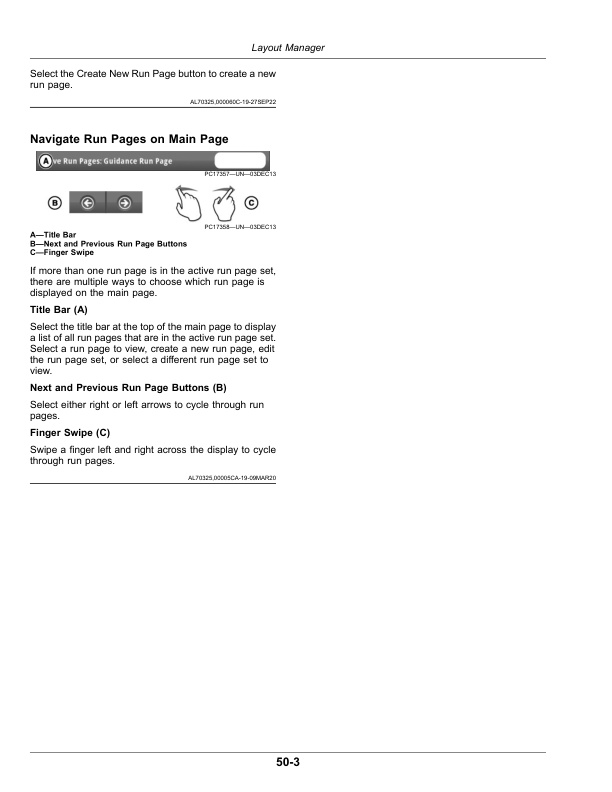
- 10.6. Navigate Run Pages on Main Page
- 11. Settings Manager
- 11.1. Settings Manager
- 12. Equipment Manager
- 12.1. Equipment Manager
- 12.2. Machine Profile
- 12.3. Implement Profile
- 13. AutoTrac Guidance
- 13.1. AutoTrac
- 13.2. Manual Guidance
- 13.3. Operate Guidance Systems Safely
- 13.4. General Information
- 13.5. Guidance Settings
- 13.6. Turn Predictor
- 13.7. Tracking Tones
- 13.8. Working Width Change Notification
- 13.9. Tram Lines
- 13.10. Shared Signal
- 13.11. Guidance Track Selection
- 13.12. Guided Line Acquisition
- 13.13. Shift Track
- 13.14. Shifting AB Curves
- 13.15. Lightbar Settings
- 13.16. Curve Track Settings
- 13.17. Circle Track Settings
- 13.18. Track Spacing
- 13.19. Steering Sensitivity
- 13.20. Set Guidance Track
- 13.21. Straight Track
- 13.22. Quick Line
- 13.23. Guide on a Straight Track
- 13.24. AB Curves
- 13.25. Guide on an AB Curve
- 13.26. Coverage Track
- 13.27. Record a Straight Path or Navigate Around Obstacles
- 13.28. Adaptive Curves
- 13.29. Guide on an Adaptive Curve
- 13.30. Record a Straight Path Within an Adaptive Curve
- 13.31. Navigate Around Obstacles
- 13.32. Circle Track
- 13.33. Circle Track Edge
- 13.34. Guide on a Circle Track
- 13.35. Boundary Fill Track
- 13.36. Guide on a Boundary Fill Track
- 13.37. Track Set
- 13.38. Swap Track
- 13.39. Tram Lines
- 13.40. AutoTrac Status Pie
- 13.41. Enable AutoTrac
- 13.42. Disable AutoTrac When Not In Use
- 13.43. Engage AutoTrac
- 13.44. Resume Switch
- 13.45. Road and Resume Switch
- 13.46. ReEngage AutoTrac on Next Pass
- 13.47. Disengage and Disable System
- 13.48. Minimum and Maximum Speeds
- 13.49. AutoTrac Disengaged Messages
- 13.50. Steering Optimization
- 13.50.1. Monitor Performance
- 13.50.2. Forward Steering Adjustments
- 13.50.3. Implement Steering
- 13.51. Troubleshooting
- 14. Field and Boundary Sets
- 14.1. Field and Boundary Sets
- 14.2. Manage Clients, Farms, and Fields
- 14.3. Field Boundaries
- 15. Work Setup, Mapping, and Flags
- 15.1. Work Setup
- 15.2. Work Totals
- 15.3. Mapping
- 16. Work Monitor
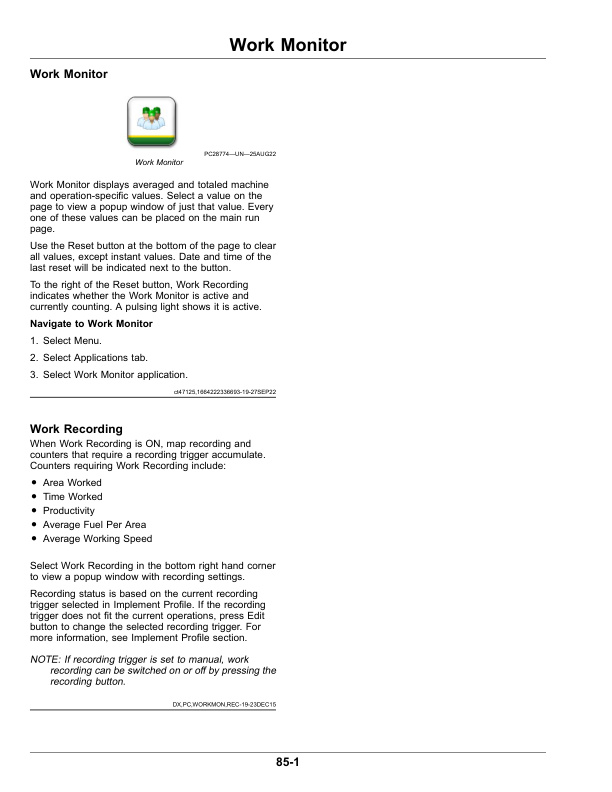
- 16.1. Work Monitor
- 16.2. Work Recording
- 17. Performance Monitor
- 17.1. Performance Monitor
- 18. Overlap Control
- 18.1. Overlap Control
- 18.2. Manual Overlap Control
- 19. Section Control
- 19.1. Section Control
- 19.1.1. Section Control Master Switch
- 19.1.2. Boundaries
- 19.1.3. Headland Control Switch
- 19.1.4. Manual Section Control
- 19.2. Advanced Settings
- 19.3. Section Status Module
- 19.4. Overlap Settings
- 19.5. Performance Tuning
- 20. File Manager
- 20.1. File Manager
- 20.2. USB Drive
- 20.3. Capture Screen Shots
- 21. Diagnostics Center
- 21.1. Diagnostics Center
- 21.2. System Diagnostics
- 21.3. Controller Diagnostics
- 21.4. Diagnostic Information
- 21.5. Hide Diagnostic Center
- 21.6. Diagnostic Trouble Codes
- 21.7. Display Hardware
- 21.8. CAN Bus Information
- 21.9. CAN Bus Values
- 21.10. Network
- 21.11. Ethernet Bus Info
- 22. Maintenance and Calibrations
- 22.1. Maintenance and Calibrations
- 22.2. Service Checks
- 22.3. Service Intervals
- 22.4. Calibrations
- 23. ISOBUS VT
- 23.1. ISOBUS VT
- 24. AutoTrac TIM
- 24.1. AutoTrac TIM
- 25. StarFire Receiver
- 25.1. StarFire GPS Receiver
- 25.2. StarFire Remote Software Updates
- 25.3. Video Triggers
- 25.4. Video Harness
- 26. Wireless Settings
- 26.1. Wireless Settings
- 27. Remote Display Access
- 27.1. Remote Display Access
- 28. Controls Setup
- 28.1. Controls Setup
- 29. Service and Maintenance
- 29.1. Clean Display
- 29.2. Factory Data Reset
- 30. Troubleshooting
- 30.1. System Recovery
- 31. John Deere Service Literature Available
- 31.1. Technical Information
- 32. John Deere Service Keeps You On The Job
- 32.1. John Deere Is At Your Service