Description
-
Model List:
- Excavator Grade Guidance and SmartGrade
- 1. Contents
- 1.0.1. Recognize Safety Information
- 1.0.2. Follow Safety Instructions
- 1.0.3. Operate Only If Qualified
- 1.0.4. Wear Protective Equipment
- 1.0.5. Avoid Unauthorized Machine Modifications
- 1.0.6. Prevent Fires, Clean Debris From Machine
- 1.0.7. Decommissioning Proper Recycling and Disposal of Fluids and Components
- 1.0.8. Notes About Making Settings
- 1.0.9. Avoid Work Site Hazards
- 1.0.10. Positional Awareness While Operating
- 1.0.11. Do Not Look Directly at a Laser
- 1.0.12. Disassembly and Assembly
- 1.0.13. Securing the Monitor
- 1.1. OperationOperators Station
- 1.1.1. Display Unit Functions
- 1.1.2. Pilot Control Levers
- 1.1.3. Remove and Install Global Navigation Satellite System (GNSS) ReceiversIf Equipped
- 1.2. OperationOperating the Machine
- 1.2.1. Before Starting Work
- 1.2.2. Inspect Machine Daily Before Starting
- 1.2.3. Check Instruments Before Starting
- 1.2.4. Parking the Machine
- 1.2.5. Do Not Use High Impact Hydraulic Attachments
- 1.3. OperationOperator Interface Display
- 1.3.1. Display Unit StartUp
- 1.3.2. Main Display and Functions
- 1.3.3. Keyboard Functions
- 1.3.4. Changing Language
- 1.3.5. Changing Screen Brightness
- 1.3.6. Data Menu
- 1.3.7. Data MenuProjects
- 1.3.8. Data MenuControl3D Control Mode Only
- 1.3.9. Data MenuLayers3D Control Mode Only
- 1.3.10. Data MenuPoints3D Control Mode Only
- 1.3.11. Surface File Types
- 1.3.12. Surface FilesDisplay, Edit, and Delete
- 1.3.13. Create Flat or Sloped Surface Files3D Control Mode Only
- 1.3.14. Create Crown Road Surface Files3D Control Mode Only
- 1.3.15. Create Triangulated Surfaces From Topo Survey File3D Control Mode Only
- 1.3.16. Raise or Lower Existing Surface3D Control Mode Only
- 1.3.17. Subgrade Existing Alignment3D Control Mode Only
- 1.3.18. Create 2D Slope Surface Files2D Control Mode Only
- 1.3.19. Data MenuActive
- 1.3.20. Data MenuImport/Export
- 1.3.21. Control Menu
- 1.3.22. Control MenuMachine Setup
- 1.3.23. Control MenuElevation Reference
- 1.3.24. Control MenuSteer Indication3D Control Mode Only
- 1.3.25. Control MenuVirtual WarningsAuto Control Only
- 1.3.26. Control MenuAutomaticsAuto Control Only
- 1.3.27. Control MenuAttachment
- 1.3.28. Control MenuAttachment Hitch Length Setting
- 1.3.29. Control Menu2D Options2D Control Mode Only
- 1.3.30. Control Menu3D/2D Mode
- 1.3.31. Control MenuAuto Control/Guidance Only
- 1.3.32. Control MenuRestart Connection
- 1.3.33. Tools Menu
- 1.3.34. Tools MenuConfigure RadiosGNSS Antenna Only
- 1.3.35. Tools MenuPosition Check3D Control Mode Only
- 1.3.36. Tools MenuNavigate3D Control Mode Only
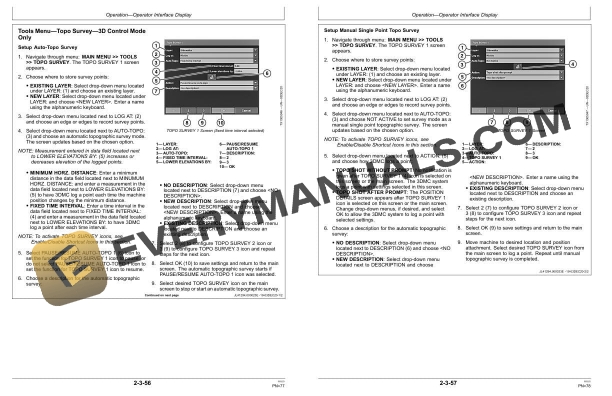
- 1.3.37. Tools MenuTopo Survey3D Control Mode Only
- 1.3.38. Tools MenuCreating 2D Slopes2D Control Mode Only
- 1.3.39. Tools MenuSupervisor Mode
- 1.3.40. View Menu
- 1.3.41. View MenuLayout
- 1.3.42. View MenuDisplay Options
- 1.3.43. Working Surface Display Options
- 1.3.44. Alignment Display Options3D Control Mode Only
- 1.3.45. Point Display Options3D Control Mode Only
- 1.3.46. Light Bar Display Options
- 1.3.47. Enable/Disable Shortcut Icons
- 1.3.48. Background Color Display
- 1.3.49. Display Units Options
- 1.3.50. Indicator Display Options
- 1.3.51. View MenuAbout
- 1.4. SmartGrade Remote Support Website
- 1.4.1. At a Glance (Support Desk)
- 1.4.2. Accessing the Remote Support Website
- 1.4.3. Managing Remote Support Account Access
- 1.4.4. Viewing, Filtering, and Sorting Paired Client Devices
- 1.4.5. Finding the Remote Support Desk Number
- 1.4.6. Configuring the Remote Support Desk
- 1.4.7. Managing Pairings
- 1.4.8. Providing Support
- 1.4.9. Remote View
- 1.4.10. Remote Control
- 1.4.11. Remote File Management
- 1.4.12. Remote MCX Configuration
- 1.4.13. Responding to Support Requests
- 1.4.14. Providing Unsolicited Support
- 1.5. SmartGrade Remote Support OnMachine Client
- 1.5.1. At a Glance (Client Device)
- 1.5.2. Opening Client Device Menu
- 1.5.3. Pairing To A Support Desk
- 1.5.4. Editing Pairing Tags
- 1.5.5. Reviewing and Modifying Support Desk Pairing
- 1.5.6. Request Support
- 1.5.7. Specifying Optional Dates and Times to Receive Support
- 1.5.8. Closing Support Requests
- 1.5.9. Viewing and Terminating Active Support Sessions
- 1.5.10. Unpairing From a Support Desk
- 1.5.11. Usage of Remote Support
- 1.5.12. Basic Remote Support Troubleshooting
- 1.6. MiscellaneousOther Options
- 1.6.1. Isolating a Surface
- 1.6.2. GNSS InformationGNSS Antenna Only
- 1.6.3. Add/Edit/Delete Attachment
- 1.6.4. Elevation Control
- 1.6.5. Slope Control
- 1.6.6. Add and Edit Radio ChannelsGNSS Antenna Only
- 1.7. MiscellaneousTroubleshooting
- 1.7.1. RTK Communication Problems
- 1.7.2. Display Problems
- 1.8. MiscellaneousMachine Numbers
- 1.8.1. Record Display Unit Serial Number
- 1.8.2. Record MCX1 Controller Serial Number
- 1.8.3. Record Function A Controller Serial Number
- 1.8.4. Record Function B Controller Serial Number
- 1.8.5. Record Radio Receiver Serial Number
- 1.8.6. Record Body Sensor Serial Number
- 1.8.7. Record Boom Sensor Serial Number
- 1.8.8. Record Arm Sensor Serial Number
- 1.8.9. Record Bucket Sensor Serial Number
- 1.8.10. Record Laser Catcher Serial NumberIf Equipped
- 1.8.11. Record Global Navigation Satellite System (GNSS) Receiver Serial NumbersIf Equipped
- 1.8.12. Keep Proof of Ownership
- 2. Page Number
- 2.1. Section 11
- 2.2. Section 21
- 2.3. Section 22
- 2.4. Section 23
- 2.5. Section 24
- 2.6. Section 25
- 2.7. Section 41
- 2.8. Section 42
- 2.9. Section 43